 Stuart Kerr Spindlow
Start with the handoff
To connect Google Sheets to ClickUp with Make, start with an approved request, create one delivery task, then write the task ID back to the request register. The important part is the record between those steps. If task creation succeeds but the reply is lost, the team must be able to find the task before trying again.
I have used Make and ClickUp, and my recommendation for a small team is to automate the handoff after human triage. Keep approval, ownership and exception handling visible. A new task is evidence of a handoff, not evidence that somebody approved the work or promised a delivery date.
The example here uses a fictional Onboarding Refresh project. It is a workflow design you can adapt, not a report of a measured production run.

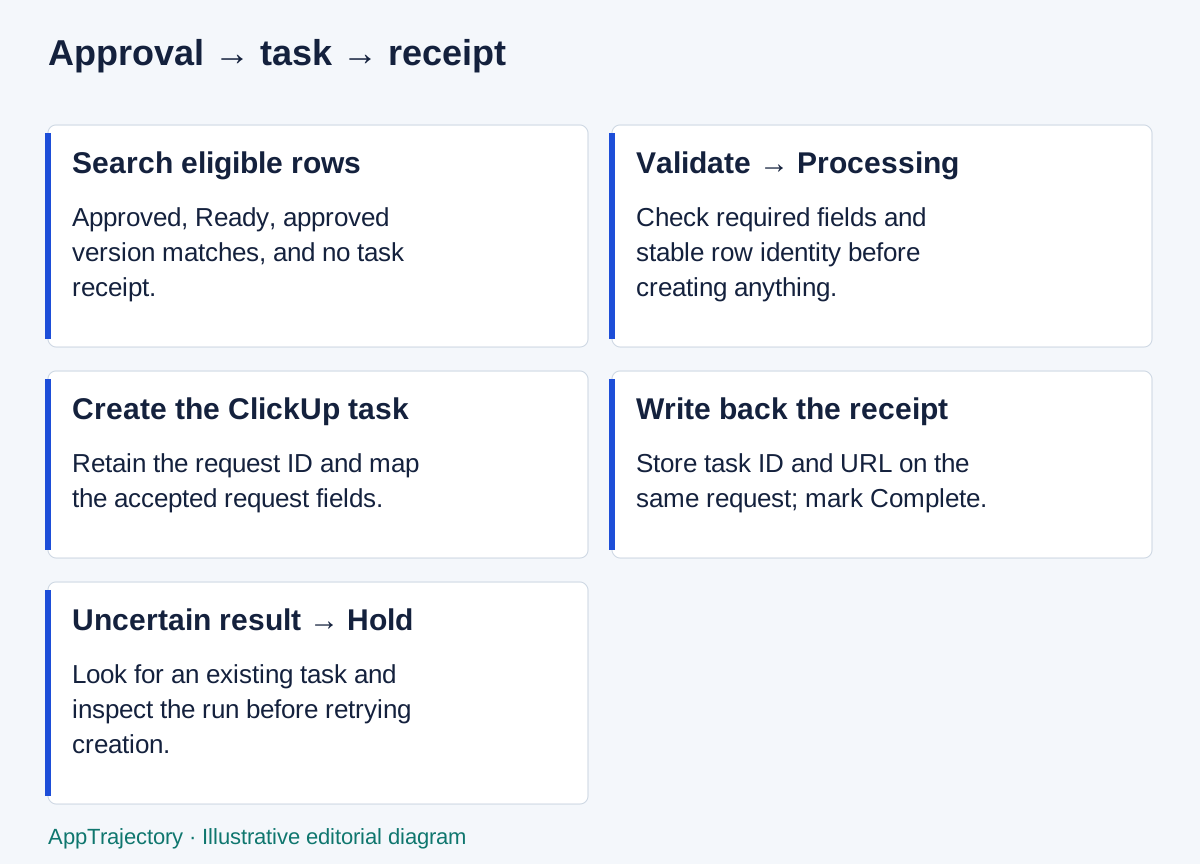
Read the diagram as text
- Search eligible rows: Approved, Ready, approved version matches, and no task receipt.
- Validate → Processing: Check required fields and stable row identity before creating anything.
- Create the ClickUp task: Retain the request ID and map the accepted request fields.
- Write back the receipt: Store task ID and URL on the same request; mark Complete.
- Uncertain result → Hold: Look for an existing task and inspect the run before retrying creation.
Build and check the handoff in sequence
Use the field contract and recovery rules below as the specification. This is an ordered implementation checklist for the illustrative workflow, not a new execution report.
- Prepare the Requests sheet and a test ClickUp List. Keep the field names and stable request IDs below; use only fictional records.
- Connect the authorised test accounts in Make and choose Google Sheets Search Rows. Select the sheet and header range; use the ordinary module when the update step needs the returned row number.
- Set the search and validation conditions for Approved, Ready, no task ID and matching approved/request versions. Start with one eligible request per cycle.
- Add the source-row update to mark Processing, preserving the request fields and checking row identity.
- Add ClickUp task creation and map the request reference, title, outcome and agreed destination List. Map optional ownership and dates only under the rules below.
- Write the returned task ID and URL back to that same request and mark Complete. Keep input fields intact.
- Run one fictional request manually and inspect the receipt. Exercise missing input and uncertain-create recovery before enabling a schedule. A green execution alone does not prove duplicate safety.
Use the module catalogue links and detailed field contract below as configuration references. Check the controls and plan limits in your account, and retain evidence of the successful receipt and failure cases.
Decide whether this integration is worth building
Use this approach when requests already arrive in a shared spreadsheet, somebody reviews them there, and ClickUp is where accepted work is delivered. It is particularly useful when copying the approved details and returning the task reference have become recurring administrative work.
Keep intake directly in your project tool if the spreadsheet adds no useful review stage. Keep the handoff manual if request volume is low, the rules change frequently, or nobody can own recovery. Automation should remove repetitive copying, not disguise an unresolved approval process.
Before configuring anything, agree five things:
- Who may approve a request and which version they approve.
- Which ClickUp List receives accepted work and who owns triage there.
- Which fields are required and which remain optional.
- How long an approved request may wait before someone investigates.
- Who can stop the workflow, repair a failed handoff and record the decision.
Use a test spreadsheet and a test ClickUp List with fictional data. Connect accounts authorised for that work and restrict access to the people who need it. Do not paste tokens or credentials into cells. The access checklist helps separate the integration account from the requester and reviewer.
You need access to Make, Google Sheets and the destination ClickUp List. Make's Google Sheets connection instructions and ClickUp connection instructions cover account authorisation. In Make, add the relevant app module and create its connection, then verify that the intended spreadsheet or List is available. Do not broaden permissions just to make a missing resource appear.
Give each request a stable identity
Create a Requests tab with a header row. Treat the following as your team's data contract, not required vendor field names.
| Field | Example | Rule |
|---|---|---|
| request_id | DEMO-001 | Unique, permanent text reference, assigned by the intake owner. |
| request_version | 1 | Increment when the requested work changes. |
| title | Refresh onboarding checklist | Short description of the work. |
| outcome | Every handoff has a named owner | Required acceptance context. |
| requested_date | 2026-09-30 | Optional ISO-format text; a request, not a committed deadline. |
| approval_status | Approved | Controlled by the reviewer, not automation. |
| approved_version | 1 | Must match the version being handed off. |
| approved_by | Delivery lead | Reviewer identity appropriate to the team's record. |
| sync_state | Ready | Delivery state, separate from approval. |
| clickup_task_id | Initially blank | Written only after an identifiable task exists. |
| clickup_task_url | Initially blank | Receipt linking back to delivery work. |
| handoff_note | Initially blank | Exception, attempt time or recovery explanation. |
Use Ready, Processing, Complete and Needs review for delivery state. The reviewer marks a request Ready only after checking its required fields, version and unique reference. A repeated submission should point to the existing request or be held for review, not receive another approved row with the same ID.
For this small-team design, appoint one writer to the handoff process and protect the register's structure. Do not sort, insert, delete or move rows while a run is using row numbers. A row number is a temporary location, not the request's identity. If concurrent edits cannot be controlled, use a queue or datastore with stronger identity and locking controls before automating creation.
Find requests that become approved later
A common design mistake is watching only for a new row and then filtering for Approved. A request entered on Monday but approved on Tuesday may never reach that filter again.
Use a scheduled Google Sheets: Search Rows module to revisit eligible requests. Select the Requests tab and its headers, then filter for Approved, Ready and an empty task ID. Add a validation filter before creation: the ID, title and outcome must be present, and approved_version must equal request_version. Start with a limit of one request per cycle while checking the design.
Make documents both Search Rows and Update a Row. Use the ordinary search module here; the advanced variant does not return row numbers. Its new-row watcher detects additions, not approval changes; the separate Watch Changes mechanism has its own restrictions. A scheduled search keeps this example explicit.
Start with an hourly schedule during the team's working day unless the agreed response requirement needs something faster. Check the actual plan's scheduling limits. An hourly handoff is not an instant integration, and a green run with no eligible request is not an error.
Route failed validation to an exception branch that marks the row Needs review, with the reason, and does not call ClickUp. Have the reviewer correct and reapprove it before returning it to Ready. This also prevents one invalid first result from occupying a one-row search limit on every run. Keep an exception view for approved rows that have missing details or mismatched versions; otherwise the filter can hide unresolved work indefinitely. If the exception update fails, the operator must remove that blockage before relying on the queue to progress.
Claim the request, create the task, return the receipt
Use this order:
- Search for an eligible request and validate it.
- Update its sync_state to Processing and record the attempt in handoff_note.
- Create the ClickUp task from that approved version.
- Write the returned task ID and URL into the same request, then set sync_state to Complete.
Do not create the task unless the Processing update has succeeded. Leave a failed or uncertain handoff in Processing or Needs review, outside the Ready filter. This gives the owner an exception to reconcile instead of encouraging the next scheduled run to create another task.
Make's ClickUp app includes Create a Task and editing modules. Select the fixed destination Workspace and List for the example. Do not let public input choose an arbitrary destination List or internal user.
| ClickUp destination | Mapping |
|---|---|
| Task name | [DEMO-001] Refresh onboarding checklist, using the actual request ID and title. |
| Description | Request ID, approved version, outcome, requested date and a link to the source register. |
| Initial status | The List's existing triage status, not an invented status name. |
| Assignee | A validated fixed triage owner; introduce dynamic assignment only with an approved mapping. |
| Due date | Leave unset initially; retain the requested date in the description until the team confirms a commitment and date mapping. |
Keep a small destination structure. The ClickUp backlog guide explains how to make ownership and readiness clear without adding unnecessary hierarchy.
For the receipt update, preserve the original input fields instead of accidentally blanking them. Confirm the returned row location still belongs to the request ID. If the row has moved or the approved version has changed, stop and reconcile; do not overwrite a different request. Include any extra read or identity-check step in your usage estimate.
Handle duplicates and uncertain outcomes deliberately
This is a single-writer workflow with human-controlled unique requests. It reduces repeat processing; it is not a transactional, exactly-once delivery guarantee across two cloud services.
The most important failure is an uncertain task creation: Make reports an error or loses the reply, but ClickUp may already have created the task. Search ClickUp for the stable request reference and inspect the run before resetting the source row to Ready. Do not assume that an error means nothing happened.
| Situation | Safe next action |
|---|---|
| Required input is missing | Correct the request and approve its current version before making it Ready. |
| The same completed row is encountered again | The Complete state/task ID should exclude it; verify no new task appears. |
| Another submission uses the same request ID | Hold it for human reconciliation; do not approve two authoritative rows. |
| Processing update fails | Stop before task creation and establish the actual source state. |
| Task creation times out | Look for the request reference in ClickUp and inspect the run. Reuse an existing task if found. |
| Task exists but receipt update fails | Restore its ID/URL to the correct source request; do not rerun creation. |
| Connection loses permission | Restore authorised access, identify the last completed step, then resume only the necessary work. |
| Several tasks match one request | Pause automatic handling and let the owner choose the authoritative record; preserve an explanation. |
In Make's scenario settings, process runs in order for this design. Do not run cloned scenarios or a manual worker against the same Ready queue at the same time. Serialising one scenario does not lock out other writers.
Consider enabling Store incomplete executions, which is off by default. Agree the data-retention implications and monitor its storage. A stored failure is useful only if somebody reviews it. Do not enable discard-on-full for requests you cannot afford to lose.
Read the error-handling guidance before choosing retries. A retry of a safe read and a repeat of task creation have different consequences. For an uncertain create, use human reconciliation before replay. Verify during the pilot that the Processing receipt remains available after the failure; do not assume a rollback can undo an external task.
Check the workflow before giving it real requests
Run the following with fictional records and write down the actual result. These are proposed acceptance checks, not results claimed for this example.
- Enter a request before approving it; approve it later and confirm that the next eligible search finds it.
- Submit a complete approved request; verify one task and a matching source receipt.
- Leave outcome blank; verify no delivery task is created and the exception is visible.
- Run the completed input again; verify that it does not create another task.
- Introduce a second row with the same reference; verify the review process catches it before approval.
- Interrupt the receipt-writing stage in the test setup; recover the existing task reference without creating another task.
- Test a revoked test connection and a changed approved version; verify the process stops safely.
- Ask the backup operator to find a stuck request, explain the last confirmed step and complete the recovery record.
Only test failure conditions in accounts and records authorised for that purpose. Keep screenshots and logs sanitised. The software pilot plan provides a place to record the plan, tester, date and outcome.
Budget for checking as well as delivering
Make uses credits. Standard non-AI module operations normally use one credit, while some advanced features use different rates. Consult its credit definitions and the actual run inspector, not just the number of boxes on the canvas.
For planning, separate scheduled searches from the modules run for each admitted request. A stripped-down path has a search plus three actions per completed request: mark Processing, create the task and write the receipt. Extra validation reads, notifications and recovery add work.
Illustrative allowance: 176 scheduled searches and 100 accepted requests would produce 476 standard one-credit operations if the search costs one operation per poll and the three-action path runs once per request. That is arithmetic under stated assumptions, not a measured bill. Continuous 15-minute checking over 30 days would mean 2,880 searches before any delivery actions. Check your scenario's operations and bundles to see how it actually behaves.
Make's pricing page, checked on 14 September 2026, lists 1,000 monthly credits on Free and a minimum 15-minute scheduled interval. Neither allowance is a reason to run a low-volume queue more frequently than the team needs. Include the operator's time and recovery work in the ownership-cost model.
My recommendation
Use Make for this handoff when the spreadsheet has a genuine review role and someone can own the mapping and exception queue. Keep the first version small: one destination, one triage owner, one approved request at a time and a clear receipt.
If you are still choosing the automation platform, use the same request and recovery checks in Make vs Zapier. The right choice is the workflow your team can understand and recover, including the option of keeping a low-volume handoff manual.
What this design buys, and what it costs
I favour the Make design when the spreadsheet is a real approval register and an operator needs to see its branches and mappings together. If the sheet only repeats ClickUp’s intake record, I would remove the handoff. If your team already maintains the same task in Zapier or n8n, familiarity is a stronger starting advantage than a new canvas. None of these choices removes the need to reconcile an uncertain task creation.
The hourly, one-request-per-cycle starting design has a capacity consequence: eight scheduled checks on each of twenty-two working days gives 176 opportunities to admit a request in that illustrative month. That is a theoretical scheduling bound, not measured throughput; invalid records, failures and holidays reduce it. A burst of several requests can wait across several cycles even when the average monthly volume is below that bound.
At 100 completed requests with three standard delivery actions each, those 176 one-credit searches give 476 credits before extra reads, alerts or recovery. The published Free allowance of 1,000 credits leaves 524 credits in this narrow model. That headroom is arithmetic, not proof the complete workflow fits Free. I would widen throughput only after the operator can reconcile row identity and failures, then recalculate every added operation.
Compare the completed handoff with n8n
If n8n is also on your shortlist, use the Make versus n8n comparison to keep the business task constant. Test approval after entry, an unapproved change, repeated input and a task created without its receipt. Compare recovery by the backup operator as well as the successful path.
Record scheduled searches separately from the operations used by accepted requests. The n8n design uses different event and billing mechanics, so matching the number of boxes or headline allowances would not make a fair comparison. Keep any additional reads, alerts and retries in the measured workload before deciding whether the Free allowance is sufficient.