 Stuart Kerr Spindlow
Overview
An n8n and ClickUp integration is useful when requests begin in Google Sheets but delivery belongs in ClickUp. The automation should do more than create a task: it should confirm that the request was approved, prevent obvious repeat processing, return a task receipt and stop when the result is uncertain.
I have used n8n and ClickUp, and I would start a small team with n8n Cloud unless it already has a clear reason and named owner for self-hosting. Cloud does not remove workflow ownership, but it lets the team evaluate the handoff without taking on the automation server at the same time.
This guide uses an illustrative Onboarding Refresh request. It describes a supported design, not a claim that every account, permission set or custom field behaves identically. Build it with synthetic records first and verify the current n8n and ClickUp behaviour in the accounts that will operate it.

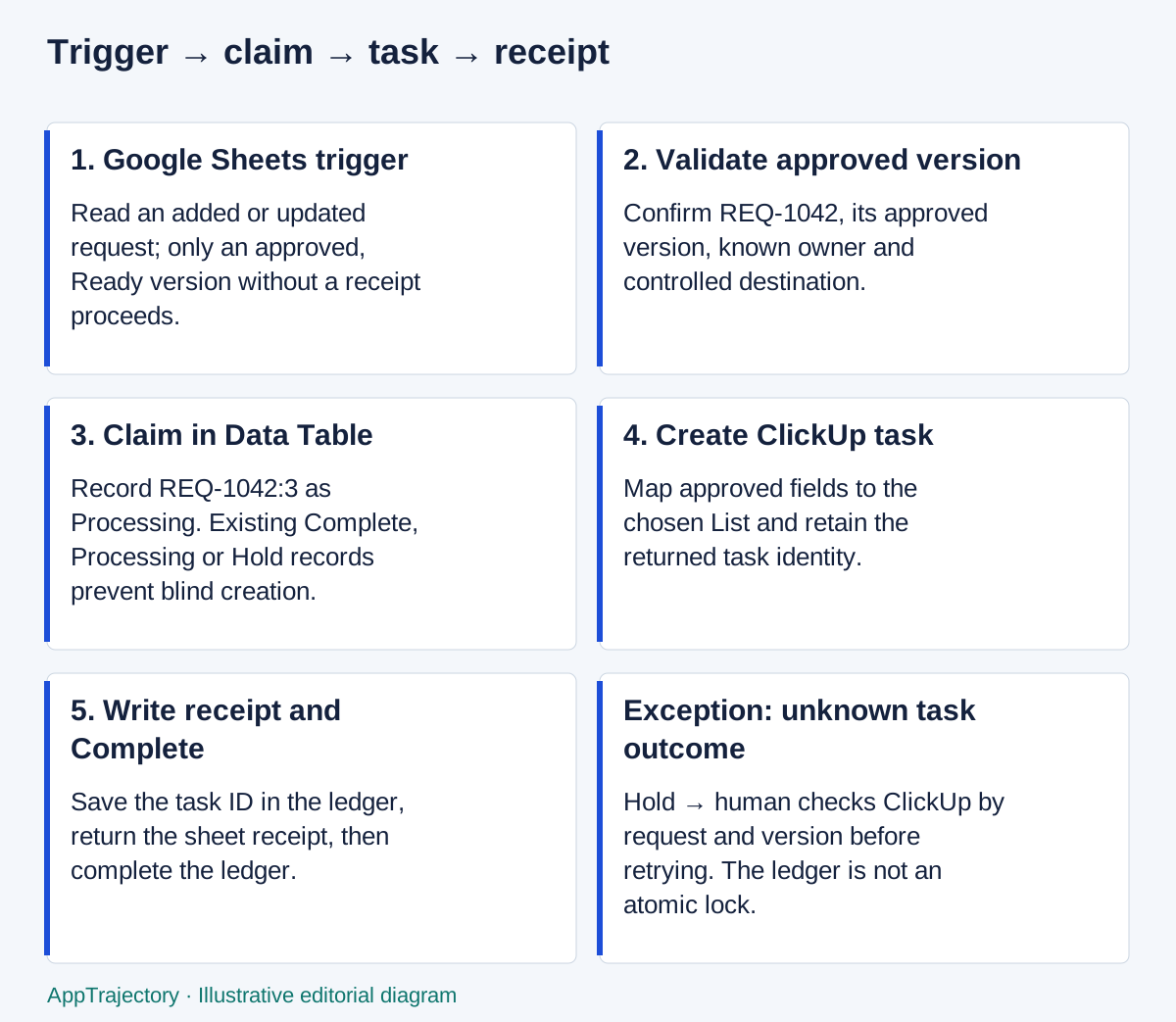
Read the diagram as text
- 1. Google Sheets trigger: Read an added or updated request; only an approved, Ready version without a receipt proceeds.
- 2. Validate approved version: Confirm REQ-1042, its approved version, known owner and controlled destination.
- 3. Claim in Data Table: Record REQ-1042:3 as Processing. Existing Complete, Processing or Hold records prevent blind creation.
- 4. Create ClickUp task: Map approved fields to the chosen List and retain the returned task identity.
- 5. Write receipt and Complete: Save the task ID in the ledger, return the sheet receipt, then complete the ledger.
- Exception: unknown task outcome: Hold → human checks ClickUp by request and version before retrying. The ledger is not an atomic lock.
Decide whether this workflow is worth automating
Keep the process manual when a coordinator handles a small, predictable number of requests and can record the ClickUp task link reliably. A spreadsheet-to-task workflow adds value when the team repeatedly copies the same approved fields, needs a visible receipt and can name somebody to own failures.
Before building, write the acceptance rule in one sentence:
Create one ClickUp task for the latest approved version of each request, then record the task ID and URL against that version.
That sentence deliberately does not say “whenever a row changes”. A row can change because somebody fixed a typo, added a note or because the automation wrote its own receipt. The workflow must distinguish an eligible business event from a spreadsheet update.
If the spreadsheet only duplicates an intake form that ClickUp already handles well, remove the extra handoff instead. Automation is not a reason to preserve an unnecessary source system.
Prepare the request register
Use one stable request ID and one explicit approval version. Do not rely on the spreadsheet row number because sorting, inserted rows and copied sheets can change it.
For the illustrative request, keep these columns:
| Column | Example | Why it exists |
|---|---|---|
request_id | REQ-1042 | Stable identity shared by the sheet, ledger and task. |
request_version | 3 | Current version of the request; increment whenever its accepted fields change. |
approved_version | 3 | Identifies the version the reviewer accepted. |
approval_status | Approved | Prevents draft requests entering delivery. |
sync_status | Ready | Separates approval from automation state. |
task_name | Onboarding Refresh | Human-readable ClickUp title. |
summary | Refresh the first-run checklist | Controlled task description. |
owner_email | owner@example.test | Mapping input, subject to an approved lookup. |
due_date | 2026-10-02 | Optional delivery field. |
clickup_task_id | empty | Destination receipt. |
clickup_task_url | empty | Human navigation receipt. |
sync_note | empty | Error or recovery note. |
The minimum eligibility rule is:
approval_statusequalsApproved;sync_statusequalsReady;clickup_task_idis empty;approved_versionequalsrequest_version, with the approved fields frozen or revalidated before creation.
Reject or hold a request that lacks a stable ID, task name, recognised owner or permitted destination. Never let a spreadsheet cell choose an arbitrary ClickUp workspace, Space, Folder or List. Select the destination in the workflow configuration.
Build the n8n Cloud workflow
1. Trigger on the change you actually need
n8n's Google Sheets Trigger supports row-added, row-updated and combined events. For a request that may be approved after it is created, use an event that can see the approval update. Then place the eligibility test immediately after the trigger.
The workflow will later write Processing, a task ID and Complete back to the same row. Those writes may create more row-update events. The first filter must therefore exclude any row that is not Ready or already has a task receipt.
Where trigger behaviour, polling interval or account permission matters, verify it with a synthetic sheet. Do not assume that the integration directory proves the exact event sequence for your editing pattern.
2. Validate and normalise the fields
Use an If node, expressions or a Code node to validate the required fields. Keep the validation visible enough that the future operator can explain it.
Normalise the data before sending it to ClickUp:
- trim the request ID and task name;
- convert the approved version to one consistent representation;
- convert the due date into the format expected by the ClickUp node;
- map an approved owner email to a known ClickUp user ID;
- construct a controlled description that includes the request ID and approved version.
Do not accept arbitrary expressions, HTML or destination IDs from an untrusted request sheet. Treat the sheet as user input, not workflow configuration.
When validation fails, update sync_status to Needs review, add a concise sync_note and stop with a controlled error. The request should not drift into a generic retry loop while the source data remains invalid.
3. Claim the request in a ledger
Use an n8n Data Table as a small processing ledger. The key can be the combination request_id:approved_version, such as REQ-1042:3.
The Data Table row should record:
- the key;
- source sheet and row identity;
- status such as
Processing,CompleteorHold; - ClickUp task ID when known;
- last update time;
- a short recovery note.
Check for the key before creation. If it is already Complete, do not create another task; return or restore the known receipt. If it is Processing or Hold without a confirmed task ID, route it to review rather than blindly creating again.
For a controlled single-writer run, insert or update the ledger row as Processing and write the same status to the sheet. Prevent overlapping claims, including manual runs, for this queue. Where that cannot be enforced, use an atomic claim with a unique request/version key before task creation; do not assume a check followed by an upsert provides a lock. n8n Data Tables support row checks, inserts, updates and upserts, which makes them useful for this small workflow.
This pattern reduces obvious repeat processing. It is not a distributed exactly-once guarantee. The sheet, n8n Data Table and ClickUp do not commit as one transaction. Two concurrent executions or a lost response can still produce an ambiguous state. If concurrent requests become a material risk, move to a stronger queue or locking design rather than overstating what the ledger can promise.
4. Create the ClickUp task
Use the built-in ClickUp node's create-task operation. Select the ClickUp List in the workflow, then map only the approved fields.
For the example:
- task name:
Onboarding Refresh [REQ-1042 v3]; - description: the controlled summary, request ID, approved version and source reference;
- assignee: the result of the approved owner lookup;
- due date: the validated source date;
- custom fields: only fields the team has deliberately mapped and tested.
The stable reference in the name or description helps a recovery owner search ClickUp when n8n did not receive a clear response. It should not expose confidential source data.
Keep the ClickUp token in n8n credentials, not in the sheet or workflow notes. Use a team-owned integration account where possible and document who can rotate it.
5. Return the receipt
After ClickUp confirms creation, capture the task ID and URL. Update the Data Table row with the task ID, then update the matching Google Sheets row:
clickup_task_id= returned task ID;clickup_task_url= returned task URL;sync_status=Complete;sync_note= a short success note or blank value.
Finally mark the ledger Complete. If the sheet write fails after task creation, keep the known task ID in the ledger and recover the source receipt without creating another task.
Identify the spreadsheet row by a stable lookup and confirm that its request ID and approved version still match. A late write should not attach a version-three task to a row that has since moved to version four.
Handle errors by last confirmed state
An error workflow is useful only when it tells the operator what was confirmed. n8n lets a workflow nominate an error workflow, and the Error Trigger receives execution and error details for automatic failures. A manual test run does not invoke the Error Trigger, so test this path with a controlled automatic execution in a non-production workflow.
Use Stop and Error for validation failures that should end deliberately. For unexpected failures, send the recovery owner a small record containing the workflow, execution link, request ID, approved version, last confirmed state and safe error summary. Do not copy secrets or complete request contents into an alert.
| Failure | What is known | Safe action |
|---|---|---|
| Required field missing | No task creation attempted | Mark Needs review; correct the source; resubmit deliberately. |
| Ledger key already Complete | Existing task ID is known | Restore the receipt; do not create another task. |
| Ledger says Processing, no creation attempted | Request was claimed | Inspect execution; release or retry only after confirming the state. |
| ClickUp returned a task, sheet write failed | Task exists | Write the known receipt back; do not repeat creation. |
| ClickUp request timed out or returned an unclear result | Task may exist | Mark Hold; search by request ID and approved version before retry. |
| Credential revoked | No reliable downstream action after the failure point | Pause the workflow, rotate the credential and resume from the confirmed state. |
| Receipt write retriggers the workflow | Row no longer meets Ready and empty-receipt rule | Stop. Correct the filter before re-enabling if another task was attempted. |
n8n can save failed and successful executions, and workflow settings also include progress-saving and timeout controls. Saving progress may help a workflow resume after an error, but it can add latency. Execution data can contain personal or commercially sensitive information, so choose retention and redaction settings deliberately.
Test the handoff before using real requests
Use synthetic records and record the result for each acceptance check:
- An approved, valid request creates one task and writes one receipt.
- A draft or rejected request creates no task.
- A repeated trigger for a completed request restores or keeps the receipt without another task.
- A missing owner mapping stops before task creation and names the correction needed.
- A writeback does not start another eligible creation run.
- A known post-creation sheet failure can be recovered from the ledger without duplicating the task.
- An uncertain ClickUp response enters
Holdand requires a destination search before retry. - The backup operator can identify the workflow credential owner, alert route and recovery steps.
- The export or register lets another person connect the source request to the ClickUp task.
Use the software pilot plan to keep evidence, owners and go/no-go criteria together. The remote-team access checklist helps remove personal-account dependencies.
Understand n8n Cloud usage and operating cost
n8n's public pricing page says its plans include unlimited users, workflows and integrations, with pricing based on monthly workflow executions rather than each internal step. That makes the unit different from Make credits and Zapier tasks.
Do not translate one platform's published allowance directly into another's. Use the actual execution history for this workflow, include failed or repeated runs according to the applicable plan, and add operator time for validation, monitoring and recovery.
At the time of checking on 21 September 2026, n8n listed Cloud Starter at €20 a month billed annually with 2,500 monthly executions and five concurrent executions. Pricing and limits can change. Confirm the current account offer, currency, tax and required features before purchase.
Self-hosting does not make the workflow free. It changes who pays for infrastructure, updates, backups, monitoring and incident recovery. Read the n8n Cloud versus self-hosted guide before moving this workflow off Cloud.
My recommendation
I would automate this handoff when the approval rule is stable, repeat copying creates avoidable work and someone will own exceptions. For a small team without an established automation platform, I would evaluate n8n Cloud first and keep the workflow narrow: one approved source, one controlled ClickUp destination, one ledger key and one recovery owner.
Choose the Make version of the same intake workflow if that platform fits the team's existing skills and operating model better. Keep the manual process when it remains clearer and cheaper at the real request volume.
The deciding test is not whether the first task appears in ClickUp. It is whether the team can explain the approval, prevent routine repeats, recover an uncertain result and preserve the source-to-task receipt.
Why I would choose this over a simpler handoff
I would choose the n8n version when an operator can maintain explicit validation and a request ledger, particularly if the team already uses n8n. I would choose Make for a team that prefers its visible routing, or keep the handoff manual when requests are infrequent and the approval record is already dependable. More nodes do not by themselves make the n8n design safer; clear state and controlled recovery do.
The Cloud Starter price checked on 23 September 2026 gives €20 × 12 = €240 a year, before tax and other services, for 2,500 monthly executions. Under a deliberately narrow assumption of one admitted execution per request and no other runs, 100 requests use 4% of that allowance. Source updates, receipt writes, retries and other workflows can produce additional executions, so this is capacity arithmetic rather than an account-usage result.
I would retain a separate request_version and require approved_version to match before claiming the request and again before creating the task. Freeze the accepted snapshot or route later edits back to approval. Otherwise a workflow can preserve the approval label while delivering text that changed after acceptance. For overlapping runs, a Data Table lookup followed by an update is not enough to establish an exclusive claim; use a controlled single writer or an atomic claim before relying on automatic creation.
Compare n8n with the Make implementation
Use the Make versus n8n comparison when platform choice remains open. Both candidates should enforce the same approved version, destination and receipt contract. Give the backup operator the same deliberately interrupted handoff and record whether they can find the task before retrying.
Separate business requests from workflow executions in the pilot record. Source edits, Processing updates and receipt writes may introduce events that the eligibility filter rejects; a request count alone does not establish billable usage. Check the account's execution record, then add recovery and other workflows before selecting the required allowance. Leave any speed or reliability winner open until equivalent observations exist.
Explore your next step
Review the current product options, then validate your required workflow before committing.
Is n8n Cloud right for your team?
For a plan-by-plan selection decision, read the n8n Cloud review for small project teams. It covers permissions, execution costs, operating limits and a practical purchase checklist.